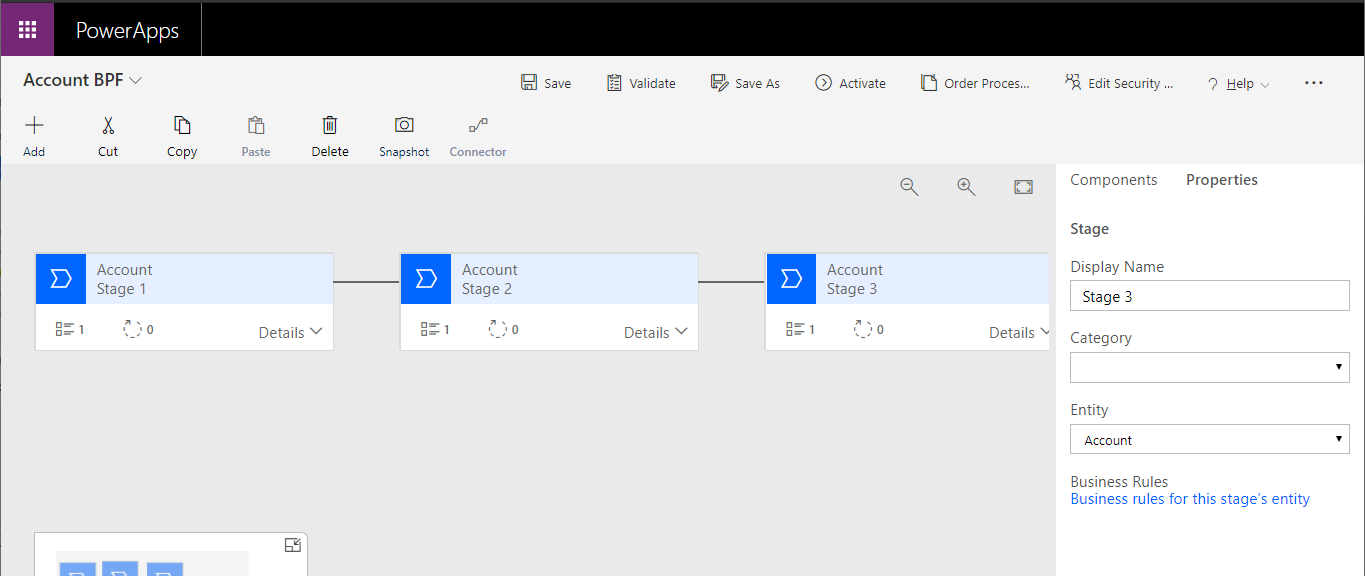
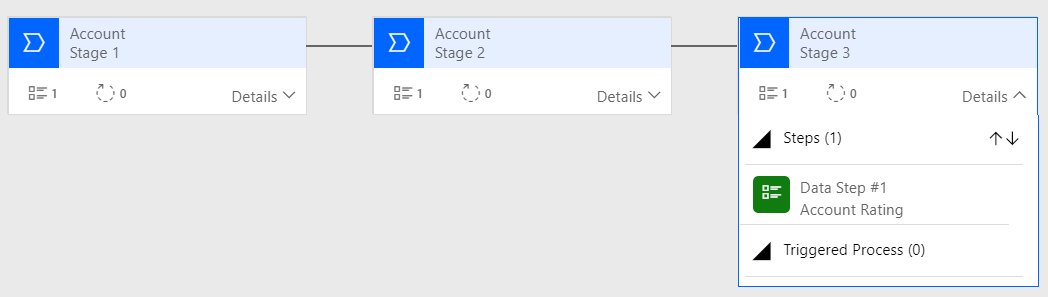
Activate the BPF. Now we have our BPF on the account.
Let’s save this account record. With each Business Process Flow applied to a record, we have its own BPF record created. In our case, we called the BPF “Account BPF”. Using Advanced Find, we can see the Account BPF record and see an instance of it for Account “Test”, which is the one I just created:
Let’s check out the OData response for our BPF entity, which is called new_accountbpfs. I’m highlighting the Id of the Account, which is the instance of this flow. The account field here is _bpf_accountid_value:
I.e. Stage 1 has a process stage id of 2ada60b3-ded2-f549-4e05-4ce11f5ca891, Stage 2 has a process stage Id of 9e1f0d59-547e-4f47-b351-cf0deebb519f, stage 3 3c54b635-63ad-4d56-a2d3-ae08f582249c.
We will use these Ids shortly. Let’s add a field, and on change we will call JS to update our stage.
On running this by tabbing off our field, we see the BPF has is now at the next stage (note you may need to refresh the page to see this, or it may take a few seconds):