
In this post, we will look at how to use the Calendar Control in Dynamics 365 Power Apps Dashboard Components. Let’s start with a dashboard we created earlier, which shows an editable grid of accounts:
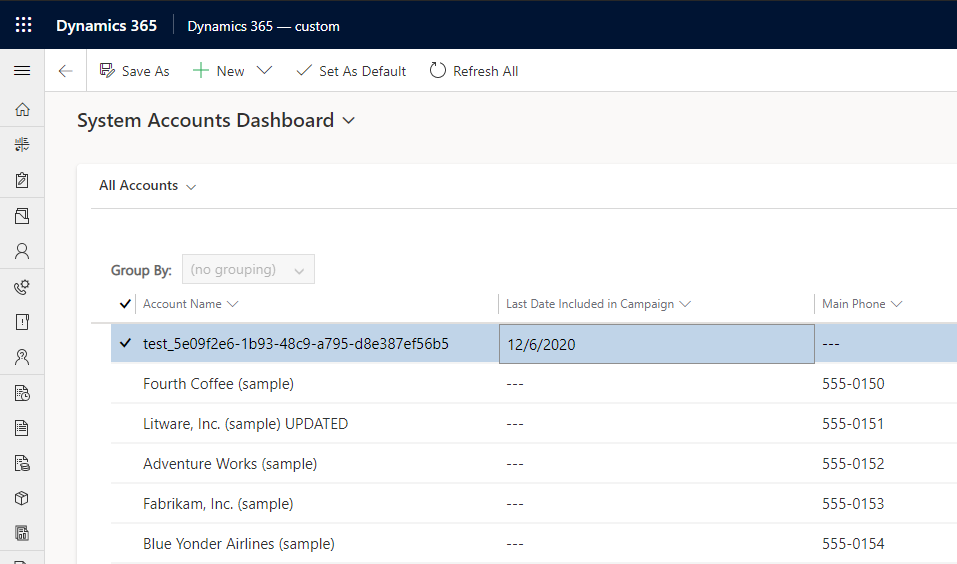
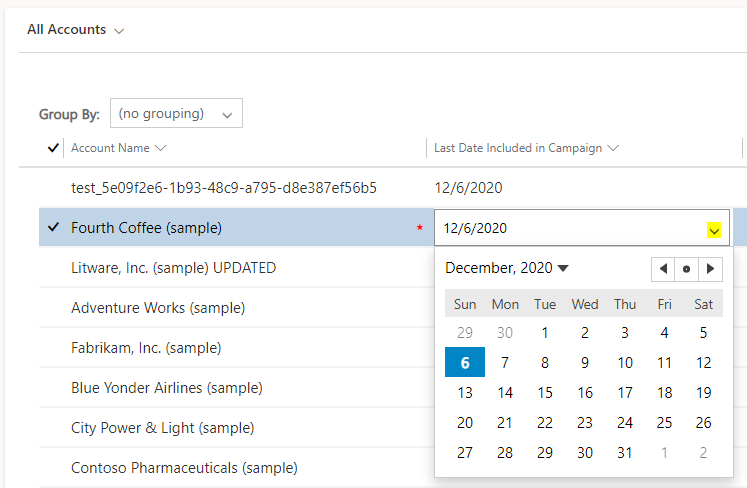
Now, this view has one field, Last Date Included In Campaign, which is a date field. If we click on it, it displays a calendar for the user to select a date:
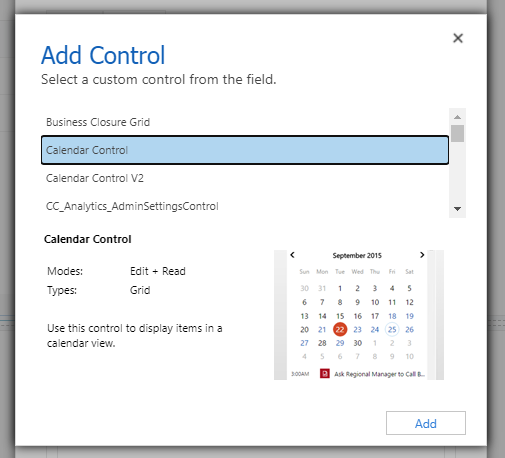
But what if we wanted the whole subgrid to display as a dates as a calendar? We can use the Calendar Control. Edit the dashboard, edit the view component and select Calendar Control:
Set it to Web and let’s select the Start Date and Description:
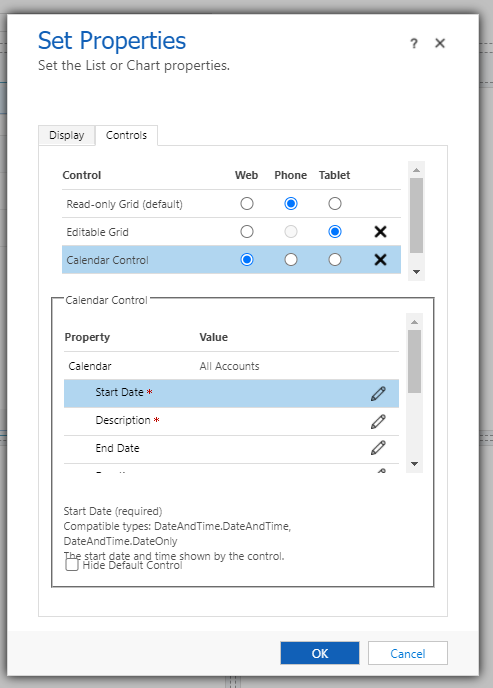
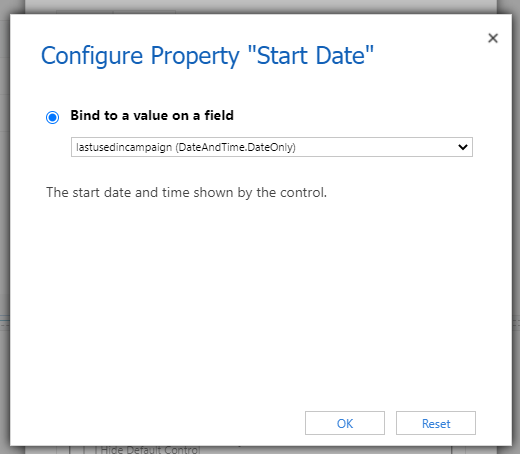
The Start Date we will use is our field, Last Used in Campaign:
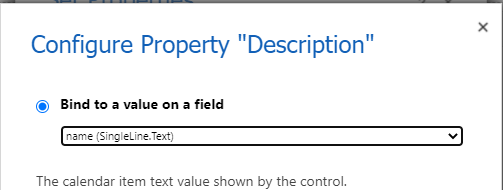
And the description will be the name of the Account:
Save and Publish.
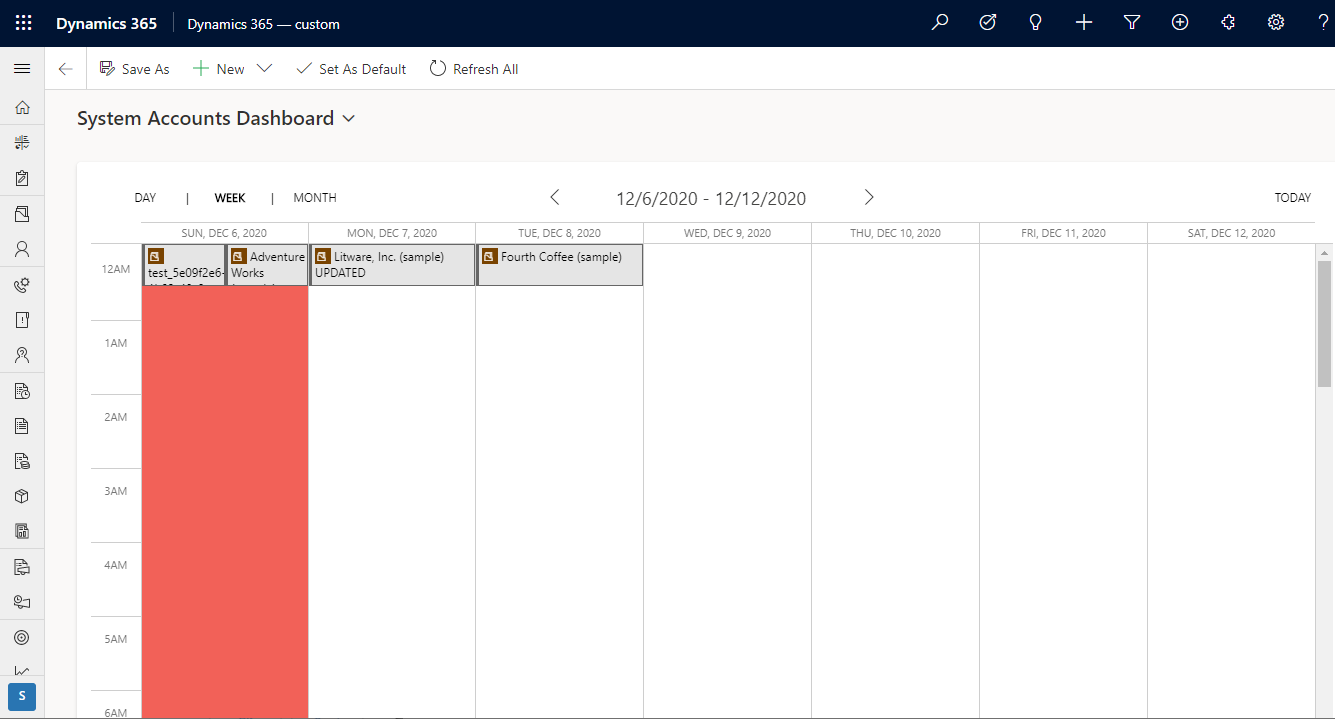
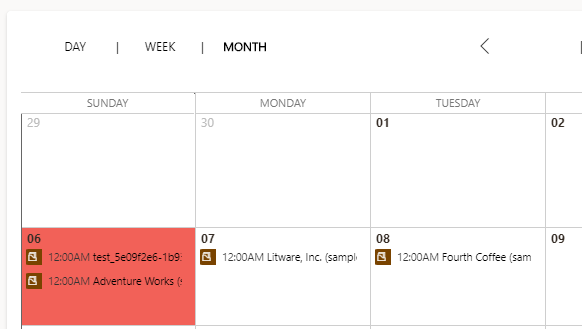
Now when we see the dashboard, it is using the Calendar control:
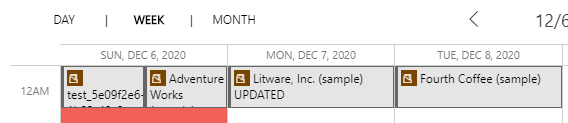
With each of the Account dates per day:
Month view:
USING CALENDAR CONTROL IN DYNAMICS 365 POWER APPS DASHBOARD COMPONENTS