
In this post, we will go over how to save the code in your Dynamics 365 instance back down to disk on your machine. You may want to do this if you want to take a backup of your customizations, though in a better scenario you would have the latest code in source control.
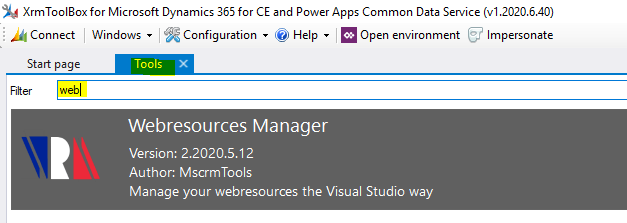
To do this, we can use the Webresources Manager plugin for the XrmToolBox, developed by MscrmTools. To use it, open the XrmToolBox and under tools, find it:
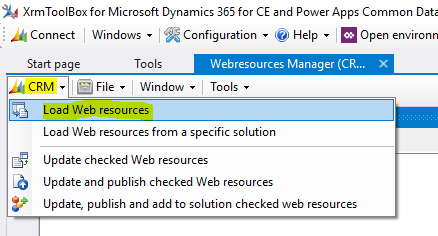
Click to open it, and select the CRM button, then Load Web Resource:
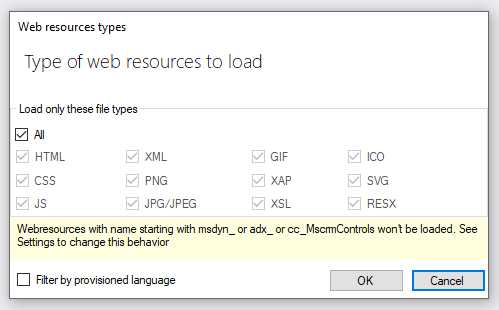
Here you can select which web resource to load. You can filter this if you don’t need to download all types of files. We will select All:
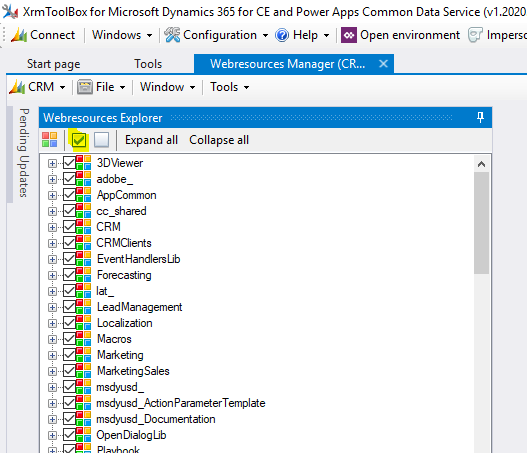
Click on the checkbox to check all web resources:
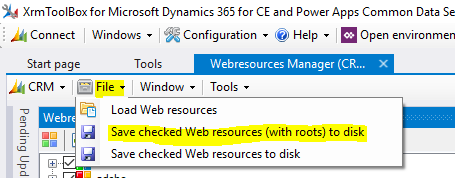
Select File->Save checked web resources (with roots) to disk:
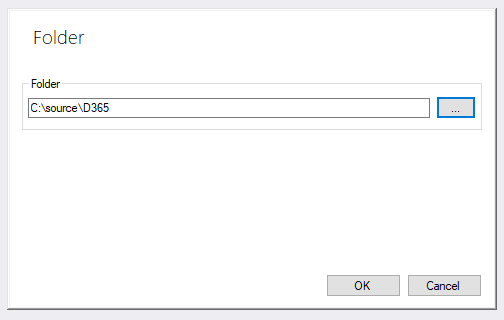
Provide a folder:
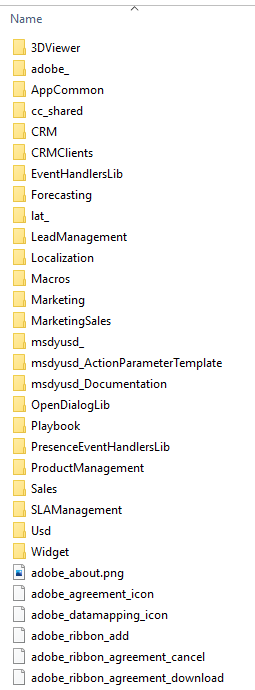
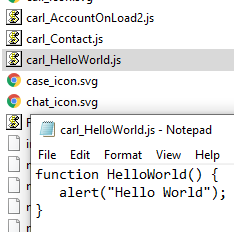
The source code will be downloaded:
HOW TO SAVE YOUR DYNAMICS 365 CODE FROM CLOUD TO TO DISK
Hi