
In Dynamics 365 / PowerApps, we have a flip switch control, which is a nice way to represent a two-option field. Let’s take a look at how we can use this control with business rules to show and hide sections on a form without code.
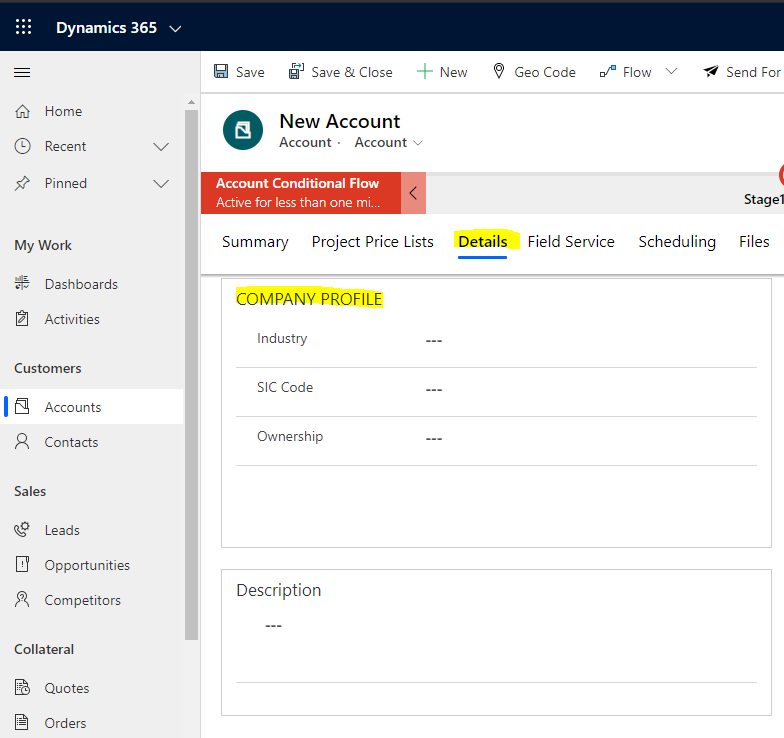
Let’s say we want to hide the Company Profile section of a form based on the value of a new field:
Let’s create a new field on the Account entity:

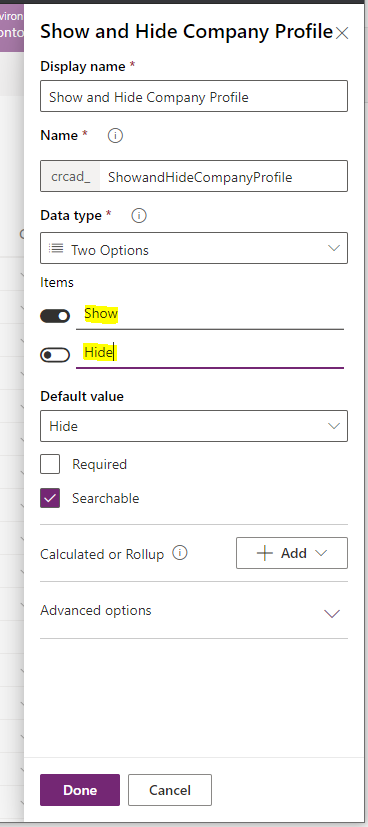
And name it Show and Hide Company Profile. We will make it a Two Options field:
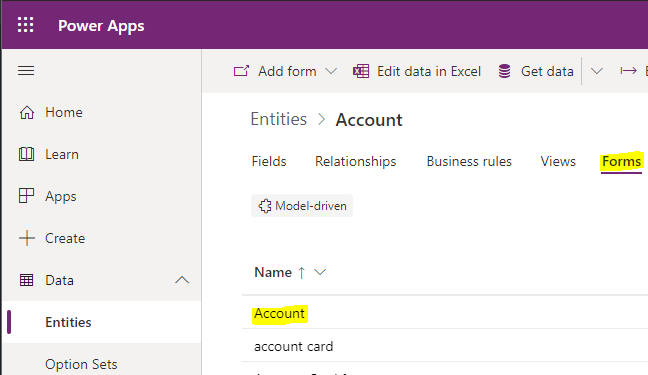
Now let’s add it to the Account main form:
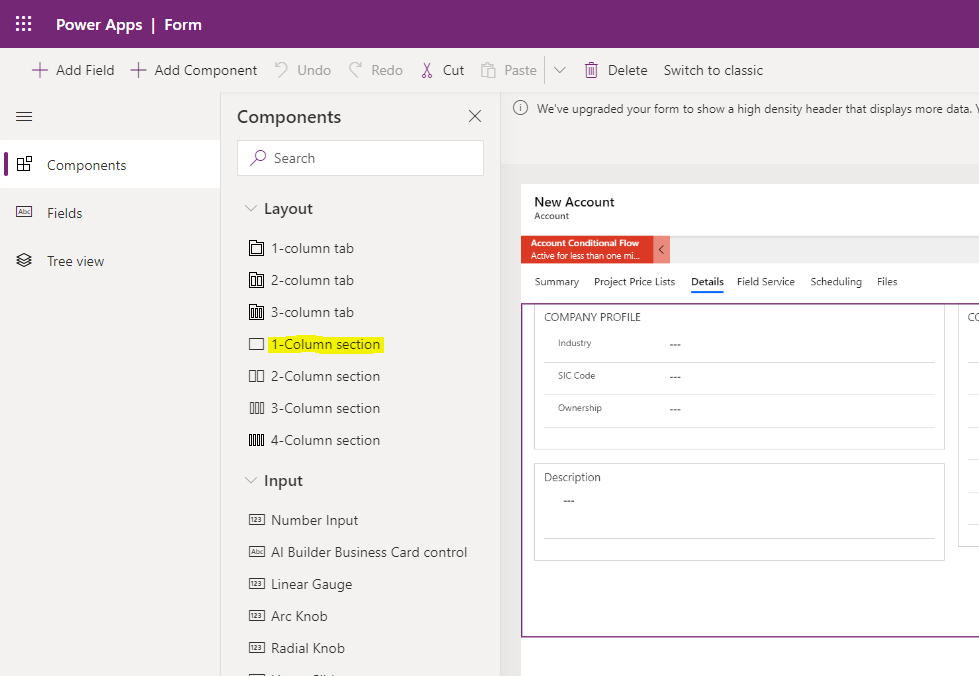
Let’s add a new section to display the field in:
And add the field:
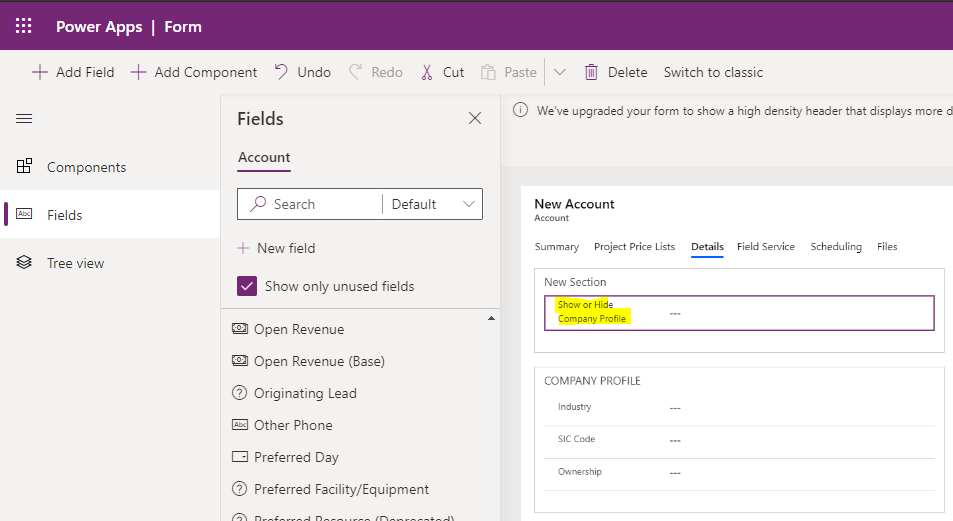
Now, if we were to save and publish the form, we see the field is a text which is selectable:
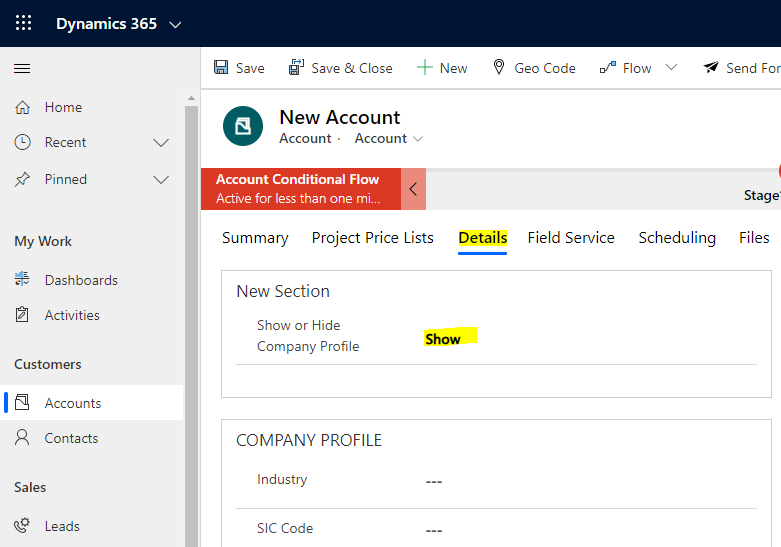
Let’s change this to a Flip – Switch control in the designer:
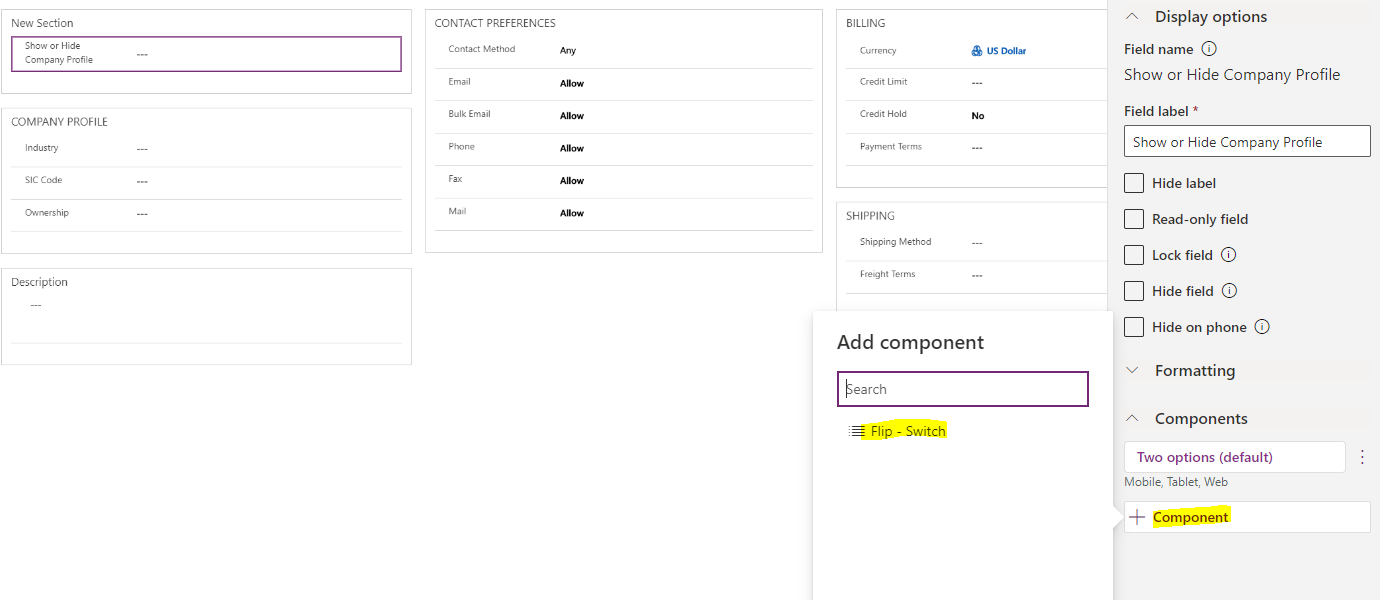
And set it to run on Web, Mobile and Tablet:
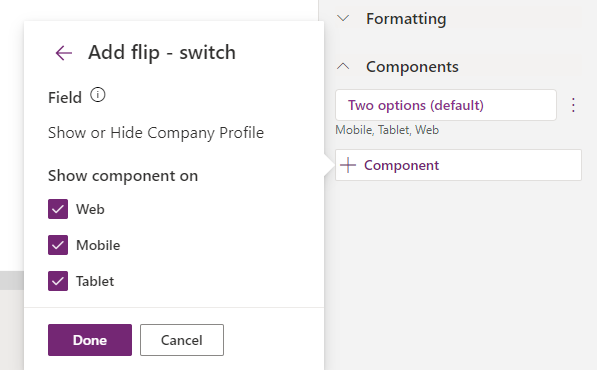
Now, publish the form. We see the new field as a flip switch:
Now let’s create a new business rule. This rule will hide or show all the fields on the section. Note, you could also write some JavaScript to show/hide the section:
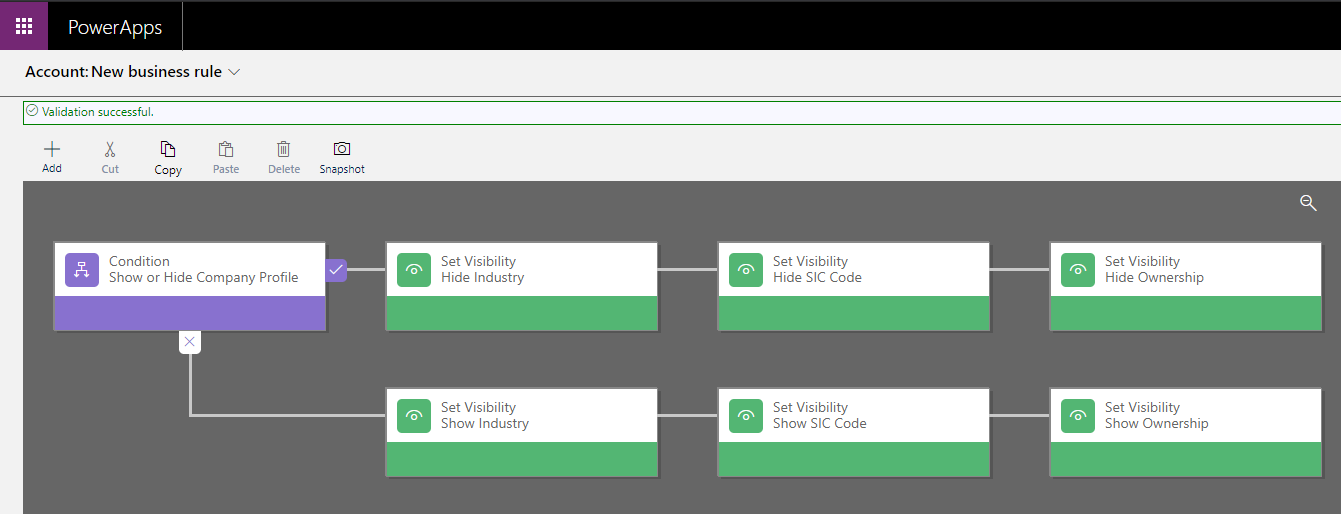
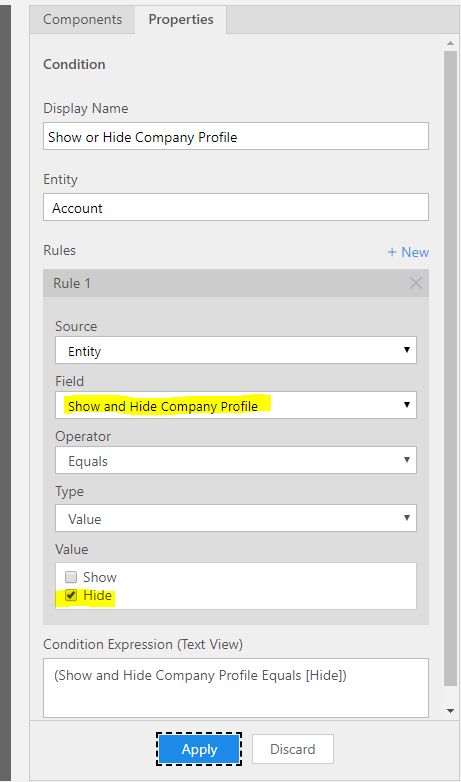
We will run this based on the field we created, Show and Hide Company Profile:
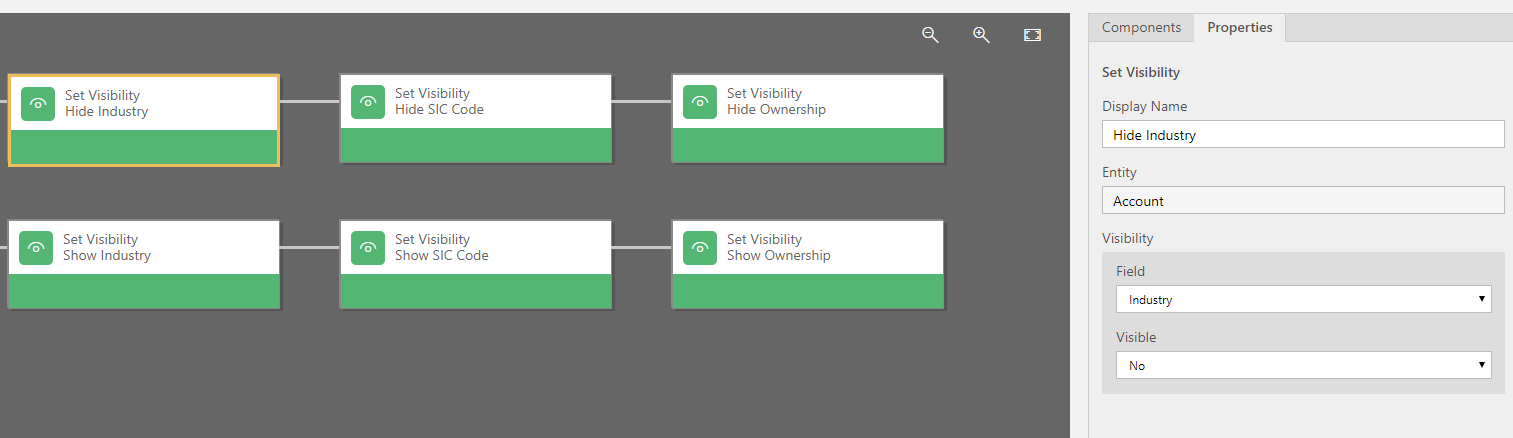
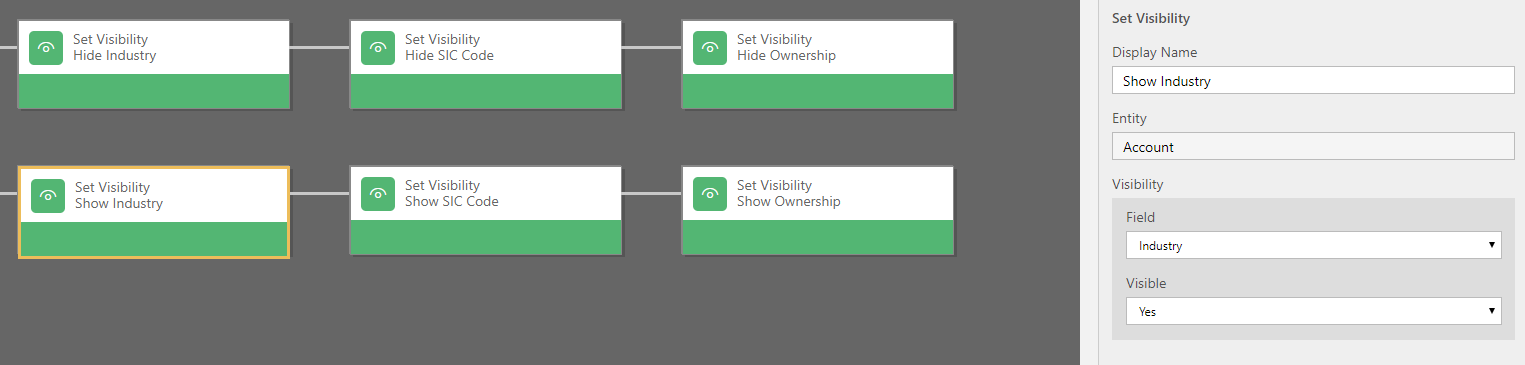
For each branch, we will set the visibility of the 3 fields to Yes or No:
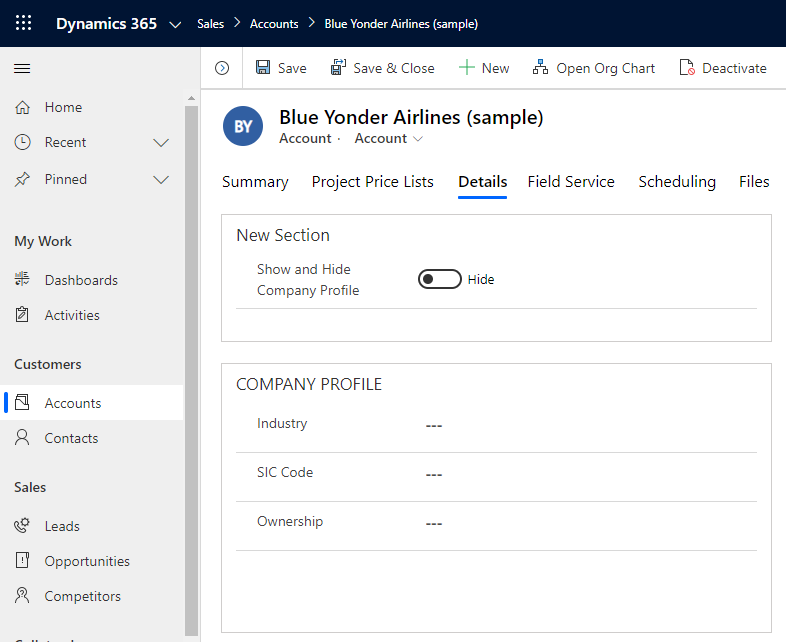
Now, save and activate the Business Rule and go to the Account. We see our new field, and the Company profile is hidden:
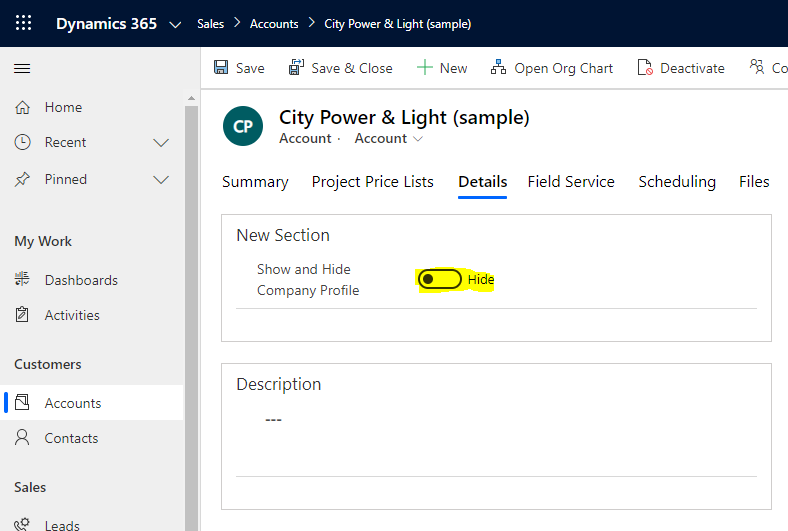
Click on the field to set it to “Show”. Our section is now displayed. You can toggle between hiding and showing:

USE THE FLIP SWITCH CONTROL TO SHOW AND HIDE SECTIONS ON A FORM